
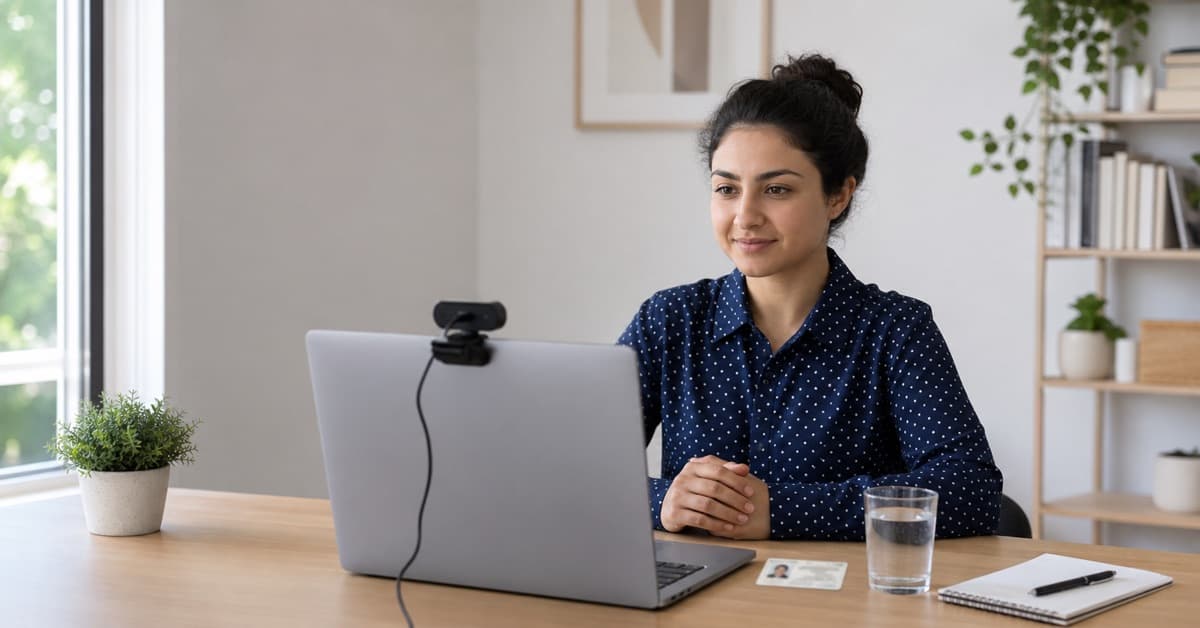
Online proctored exam tips are easy to ignore until the webcam check freezes, your room scan takes forever, or the proctor asks why there is a second monitor behind you. Then suddenly the test is not just about the material. It is about the setup, the rules, the software, and staying calm while someone watches you work.
That extra layer is what makes remote testing feel strange. You may know the content cold, but if your desk is cluttered, your camera is too dark, or your internet drops during check-in, your confidence can disappear fast. Annoying? Absolutely. Avoidable? Usually.
This guide gives you practical, honest online proctored exam tips for setup, rules, common mistakes, and test-day flow. It also pairs well with our broader guide on how to pass a proctored exam if you want a deeper strategy for content preparation and remote monitoring anxiety.
How Online Proctoring Works Before You Start
Before you can prepare well, you need to understand how online proctoring works. Most platforms follow a similar pattern: verify who you are, inspect your environment, restrict your computer activity, then monitor the session until you submit the exam.
Some exams use a live proctor who watches in real time and can message you if something looks off. Others record the session and use AI to flag suspicious behavior for later review. Many use both. Either way, the system may capture your webcam, microphone, screen, browser activity, and sometimes your room scan.
The goal is not to make you miserable. It is to protect exam integrity when testing happens outside a physical testing center. Still, the experience can feel personal because your home becomes the testing site. That is why your online exam setup matters almost as much as your study plan.
A typical remote proctoring flow
- Install or launch the required testing software.
- Run a system check for camera, microphone, and browser.
- Take a photo of yourself and show your government ID.
- Scan your desk, floor area, walls, and nearby surfaces.
- Close prohibited apps and extra browser windows.
- Keep your face, hands, and screen visible while testing.
Online Proctored Exam Tips for a Smooth Test Day
The best online proctored exam tips are not dramatic. They are small, practical moves that keep your test from becoming a tech support session. Start with the basics: do not wait until the morning of the exam to download anything, update anything, or discover your webcam permission is blocked.
Give yourself a two-day buffer. Run the official system check, open the browser extension or lockdown browser, confirm your operating system is supported, and make sure your ID name matches your registration name. If your legal name, school profile, and exam account do not match, contact support before test day. That kind of mismatch can delay check-in.
Also think about your body. Remote exams make people strangely stiff because they are afraid to move. You can blink, breathe, stretch your fingers, look up briefly to think, and adjust in your chair. What you want to avoid is repeated off-screen staring, whispering through every question, covering your mouth, or reaching for items outside the camera view.
- Start early: Begin check-in 20 to 30 minutes before your scheduled time.
- Use the same device: Practice and test on the computer you will use for the real exam.
- Charge everything: Keep your laptop plugged in and disable battery-saving settings.
- Tell your household: A knock on the door can become a flag if someone enters the room.
- Close background apps: Messaging apps, screen recorders, cloud sync tools, and VPNs can cause problems.
If your exam is part of an online course and you are juggling deadlines, discussion boards, quizzes, and proctored finals, our online class support service can help you get organized before the pressure piles up.
Online Exam Setup Checklist
Your online exam setup should be boring in the best possible way. One computer. One screen. One clear desk. One quiet room. The fewer variables you introduce, the fewer things can go wrong.
Technology checklist
- Laptop or desktop that meets exam requirements
- Working webcam with a clear face view
- Microphone enabled and not blocked by privacy settings
- Stable internet, preferably wired ethernet
- Power cable connected for the full session
- Lockdown browser or extension installed
- Pop-up blockers, VPNs, and extra apps disabled
Room checklist
- Private room with a door you can close
- Clean desk with only approved materials
- No phones, smart watches, tablets, or extra screens
- Good front lighting so your face is visible
- Plain background without notes or calendars
- Water allowed only if your exam rules permit it
- Household members told not to interrupt
Do a practice room scan the night before. Pick up the laptop or webcam and slowly show the desk, the space under the desk, the walls, the ceiling area, and the floor around you. If anything makes you pause and wonder, "Would a proctor question that?" remove it.
For a broader packing and timing routine, bookmark our test day checklist. It covers in-person and online exam prep, including IDs, meals, arrival timing, and last-minute mistakes.
Proctored Exam Rules Most Test-Takers Miss
Proctored exam rules sound obvious until you read the fine print. Some platforms allow a drink but not a label on the bottle. Some allow scratch paper, but only if you show both sides before and after the exam. Some allow bathroom breaks, but the timer keeps running.
The biggest rule is simple: your exam sponsor's instructions win. Not what your friend did last semester. Not what a Reddit thread said. Not what another certification allowed. Your exam, your rules.
Commonly prohibited during online proctored tests
- Phones, tablets, smart watches, and second computers
- Headphones or earbuds unless specifically approved
- Notes, books, printed formulas, and wall posters
- Other people entering or speaking in the room
- Opening extra tabs, apps, messaging tools, or AI tools
- Taking screenshots, copying questions, or recording
- Leaving the camera view without permission
- Reading questions aloud if the rules prohibit talking
Need a cleaner plan for your online exam?
ReviewJane can help you organize exam prep, understand online testing requirements, and build a calmer path to your next assessment.
Practice Under Proctored Conditions
Proctored test preparation has two sides. First, you study the material. Second, you practice the environment. Most students do the first and skip the second, which is why they feel weird when the real exam begins.
Take at least one practice test at the same desk, with the same camera angle, at roughly the same time of day. Put your phone away. Close your notes. Use only the materials your real exam permits. If you are allowed a calculator, use that exact calculator. If you get only an online whiteboard, practice with one.
This kind of rehearsal is not glamorous, but it works. Your brain stops treating the webcam as a threat and starts treating the setup as normal. That leaves more attention for the actual questions.
Mini rehearsal plan
- Clear the room exactly as you will on exam day.
- Set a timer for one full practice block.
- Keep your face in the webcam frame the entire time.
- Use only approved scratch tools and calculators.
- Afterward, note what felt awkward and fix it.
If you are preparing for a course final, placement exam, or certification and want structured help, our fast online class pass tutoring can help turn scattered review into a practical study plan.
Remote Proctoring Mistakes to Avoid
Remote proctoring mistakes are frustrating because they are usually small. A smartwatch on your wrist. A phone charging on the bookshelf. A roommate opening the door to ask a harmless question. None of these means you were trying to cheat, but the system does not know your intent.
Mistake 1: Depending on last-minute software installs
Lockdown browsers and proctoring extensions can require permissions, restarts, updates, or admin access. Install early so you are not fighting your computer while the exam clock is about to start.
Mistake 2: Leaving visual clutter in the room
Posters, whiteboards, calendars, sticky notes, textbooks, and open notebooks can all create questions during the room scan. Clear more than you think you need to clear. It is easier than explaining every object to a proctor.
Mistake 3: Practicing with habits that are not allowed
If you usually talk through math problems out loud, constantly look at handwritten notes, or solve questions with music in the background, practice differently. The real exam environment should not feel like a sudden personality transplant.
Mistake 4: Forgetting privacy settings
macOS and Windows can block camera, microphone, screen sharing, or browser permissions. Check privacy settings during your dry run, especially after operating system updates.
Mistake 5: Treating anxiety as a character flaw
Feeling watched is uncomfortable. That is normal. If anxiety tends to hijack your focus, read our guide on how to overcome test anxiety and practice a breathing routine before your proctored session.
What to Do When Technology Acts Up
Even good online proctored exam tips cannot guarantee perfect technology. Connections drop. Browsers freeze. Cameras fail to load. The trick is to respond calmly and create a record of what happened.
If the proctoring platform freezes before the test starts, refresh only if the instructions allow it. If you are already connected to a live proctor, ask before closing anything. If your internet drops, reconnect quickly and contact support through the official channel. Write down the time, error message, and what you did.
Camera not detected
Close video apps, check browser permissions, unplug and reconnect an external webcam, then rerun the system check.
Microphone blocked
Check system privacy settings, browser permissions, and input device selection. A muted system mic can fail even if the browser looks ready.
Connection unstable
Move closer to the router, switch to ethernet if possible, pause household streaming, and avoid public WiFi for high-stakes exams.
For students who need help coordinating multiple online tests, deadlines, and retake windows, ReviewJane's exam support options can help you plan the process instead of reacting in panic.
A Calm Test-Day Routine That Works
On test day, your job is to remove friction. Do not cram for three hours, argue with your printer, update your laptop, and then sprint into check-in sweating. That is not a strategy. That is chaos wearing a calendar invite.
Wake up early enough to eat something normal, drink water, and do a light review of concepts you already know. Restart your computer. Open the testing platform. Confirm your webcam and microphone. Put your phone outside arm's reach, silence notifications, and close the door.
30-minute pre-exam routine
- 30 minutes: log in and begin check-in.
- 25 minutes: complete ID verification and photo steps.
- 20 minutes: complete the room scan slowly.
- 15 minutes: wait for proctor approval if required.
- 10 minutes: breathe, sit still, and stop reviewing.
- 0 minutes: begin with your attention on question one.
And remember: online proctored exam tips are not about gaming the system. They are about making sure the system does not get in the way of what you already studied. Prepare your setup, respect the rules, rehearse the experience, and give yourself a calm launch into the exam.
If your next test is tied to an online program, you may also like our guide to online class success strategies and our breakdown of AI tutoring for exam success.
Frequently Asked Questions
What are the best online proctored exam tips for beginners?
The best tips are simple: read your exam rules, install the proctoring software early, run a system check, clear your desk, test your webcam and microphone, use a private room, and begin check-in 20 to 30 minutes before the scheduled start. Most problems happen because people wait until test day to handle setup.
How does online proctoring work?
Online proctoring usually combines identity verification, webcam monitoring, microphone audio, screen recording, and browser restrictions. You may show your ID, scan your room, confirm that your desk is clear, and keep your face visible during the exam. Depending on the platform, a live proctor, AI review, or both may monitor the session.
What should my online exam setup include?
Your setup should include a laptop or desktop computer, working webcam, working microphone, stable internet, power connection, valid photo ID, good lighting, a clean desk, and a private room. Remove phones, smart watches, notes, books, second monitors, and anything your exam rules do not allow.
Can I use scratch paper during an online proctored exam?
It depends on the exam sponsor. Some exams allow one blank sheet of paper, some require a physical whiteboard, and others only allow a digital scratchpad inside the testing platform. Check the specific proctored exam rules before test day. Do not assume paper is allowed just because another exam permitted it.
What happens if my internet disconnects during the exam?
Stay calm and try to reconnect immediately. Many platforms save answers automatically, but policies vary. Contact the proctor or testing support as soon as possible, document the time of the issue, and follow the official instructions. A wired connection or strong WiFi signal lowers this risk.
Are online proctored exams recorded?
Most online proctored exams are recorded. The recording may include your webcam video, microphone audio, screen activity, and room scan. Recordings are typically reviewed only when a system or proctor flags an issue, though exact retention and review policies depend on the testing organization.
Can I take an online proctored exam in a shared room?
Usually no. You normally need a private room where no one else enters, speaks, or appears on camera. A shared room can create flags for extra voices, movement, or visible people. If home is unpredictable, consider reserving a private study room or choosing a testing center if your exam offers that option.
What are the most common remote proctoring mistakes?
Common mistakes include starting check-in too late, leaving notes or devices in view, forgetting to test the webcam, using unreliable WiFi, talking to yourself, wearing prohibited headphones, opening extra browser tabs, and not reading the exam-specific rules. These are preventable with a dry run.
Will looking away from the screen get me flagged?
Briefly looking away to think is normal. Repeatedly looking at the same off-screen spot, reading from notes, or turning away for long periods may create a flag. Keep your face visible, stay centered in the camera frame, and practice solving questions without relying on off-screen habits.
How early should I log in for an online proctored exam?
Log in 20 to 30 minutes early unless your testing organization gives a different instruction. Check-in can take longer than expected because of ID photos, room scans, software updates, or a queue for a live proctor. Starting early gives you breathing room.